How to hide YouTube Shorts on desktop (and keep them hidden)
You open YouTube for one video. Half an hour later you're still scrolling Shorts.
There's no switch to turn them off on desktop. Here's what actually works.
YouTube's own options
- "Not interested" on a Short. Slowly teaches YouTube to show you fewer.
- The X on the Shorts shelf. When it appears, it hides the shelf for 30 days.
- The Subscriptions feed. Fewer recommendations, but Shorts still show up.
Fine for a mild annoyance. To make Shorts actually disappear, you need an extension.
Extensions that remove them
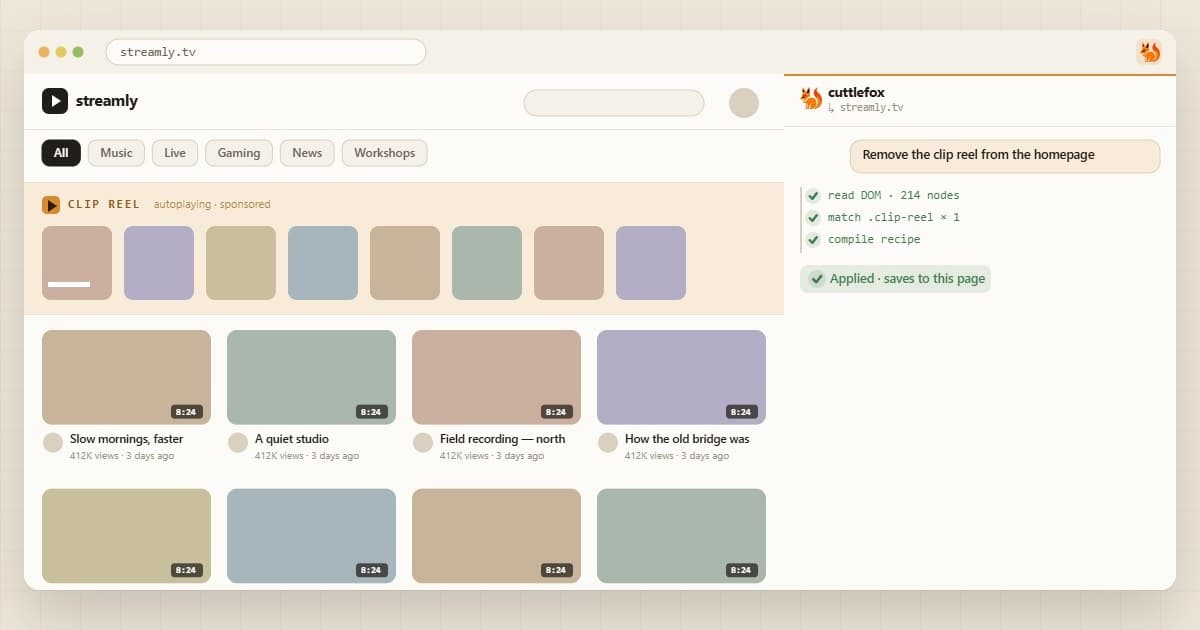
Hide Shorts with Cuttlefox
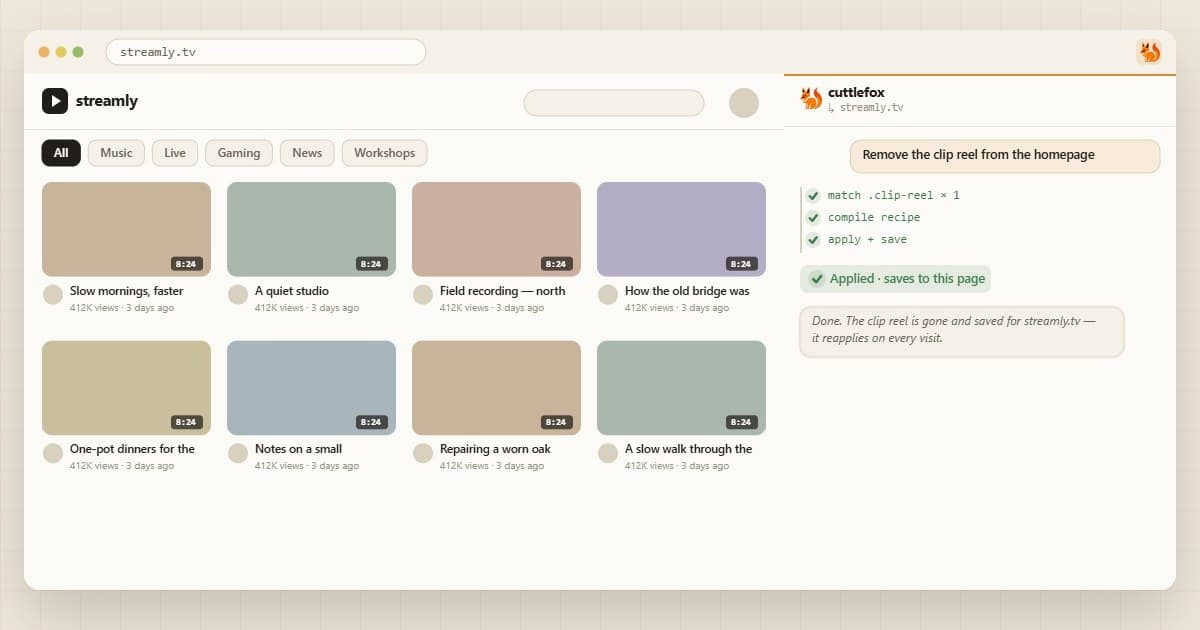
Open YouTube, click the Cuttlefox icon (or press Ctrl+Shift+E), and type:
Prompt
Hide YouTube Shorts everywhere: the shelf on the home page, the Shorts link in the sidebar, and Shorts in search results.
Check the preview and save it for the whole site. While you're there:
Prompt
Hide the comments until I click a "Show comments" button.
Good to know
- This works in Chrome on your computer, not in the YouTube app.
- Edits are saved to your account, so they follow you to any Chrome where you sign in to Cuttlefox.
- If YouTube changes its layout and the edit breaks, ask Cuttlefox to fix it.
Other sites bugging you too? See how to permanently change any website in Chrome.